IBM Server Site

IBS Home Up

RP 2 - Create Service Charges

Important Notes

  • This option DOES NOT apply service charges to the accounts!

    It only creates a blank listing of service charges.

    Service charges are applied to accounts only with option 5 (Apply service charges to accounts)

Problems & Errors

  1. If you field exit through the date the service charges will be created with a date of 00/00/00!
  2. If you run this option more than once it will recreate the service charge file each time. Any changes (revisions) will need to be entered in a second time.

Screen 1 - Service Charge Initialization

  • F3 - cancel and return to previous menu
  • F6 - clear files and create a new service charge file. This is normally done every month.

Screen 2 - Service Charge Calculations

  • Enter in the date to calculate service charges
    • You may need to adjust the date reach the 30 day service charge date.
    • For example if you charge service charges on a monthly basis rather than every 30 days you might need to put a date of 03/29/08 to charge all of February service charges or 01/30/08 to charge all of December.
  • Enter your monthly interest rate charges
    • 1.00 = 12% annual
    • 1.5 = 18% annual
    • 2.0 = 24% annual
  • Calculate service charges on service charges
    • Please note that it is illegal to charge service charges on service charges in some states. Check with your CPA and/or legal counsel if there is any doubt.
  • Enter your minimum service charge. Any interest charges that are below the minimum will be raised to your minimum.
    • For example if you have a service charge of $.38 and your minimum charge is $1.00. They will receive a $1.00 service charge.
  • Enter in the date to apply service charges. This is normally within a day or two of the statement date but it can be any date you select.
  • Finally F8 to accept and continue or F3 to cancel operation

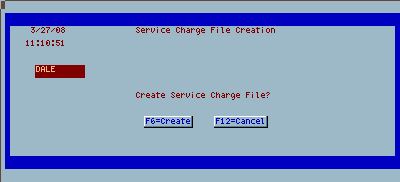
Screen 3 - Confirmation screen

  • Press F6 to continue or F12 to cancel operation

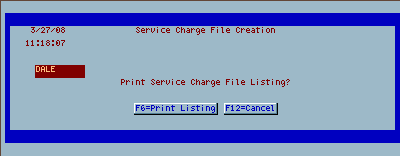
Screen 4 - Final confirmation

  • Press F6 to finish and create the new service charge listing.

Pitfalls that cause problems with statements | no date on service charges | duplicate service charges | Service charges were posted multiple times

Pitfalls

Date on service charges is 00/00/00

Cause

  • The person creating service charges field exited through the service charge date in RP 2 (Create service charges).

Resolution

  • Change the service charge date in ZU 19,1

Service charges were posted 2 or more times to the accounts

Cause

  • The option RP 5 (Post Service Charges) was taken more than once.

Resolution

  • Delete the duplicate service charges from the account ZU 19,1

IBS Lumber and Building Material Software Copyright © 2006 IBS Lumber Software Inc (TM)
Last modified: November 7, 2011

IBS Sales & Support 888-640-1252
Main Office 888-640-1252
Fax IBS 877-712-8937

All pages contained in this support website are not intended for general public distribution. Any material here can be considered private, confidential with various copyrights and restrictions against public release. You 'the browser' cannot legally release this information for general public distribution.

remote support: http://www.gotomeeting.com | remote support download program