IBM Server Site

IBS Home Up

Reverse a Posted Check

See Also

What this option does

This option does each of the following

  • it voids a check
  • it returns the voucher for posting (You can find it in AU 2 after reversal)
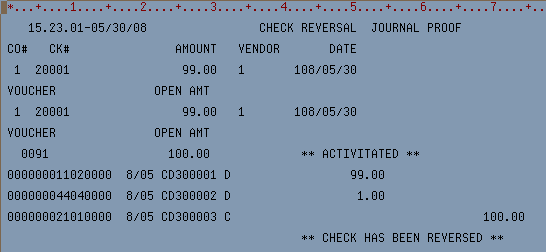
  • it reverses the G/L entries made by the check
  • it prints a report showing the G/L reversal

[back to top]

How to reverse a check

  • Type "AU" for (Accounts Payable Update)

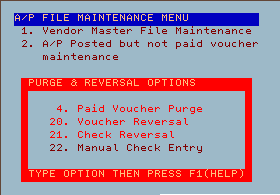
  • Select option 21 (2008 and later MENU Versions)

    Select Option 5 (File Maintenance Menu) (2007 and earlier MENU Versions)

  • Select Option 21 (Check Reversal)

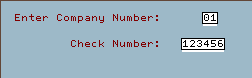
  • Type in the Company Number (usually "01") and the Check Number NNNNNN

  • If you receive the error message "CHECK NOT FOUND FOR THIS CO/CHECK#" you must rekey the information or do a search in AI (Accounts Payable Inquiry).
  • If no error message appears continue to the next step.

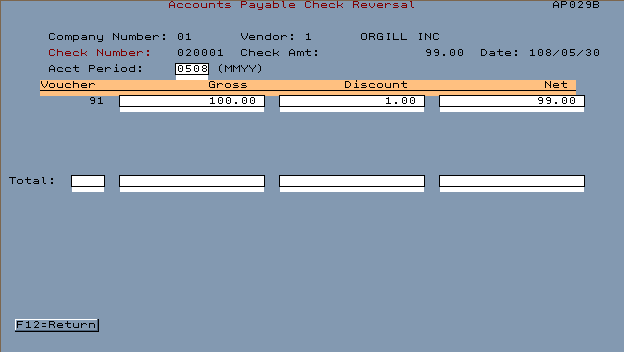
  • When you press ENTER look at the bottom of your screen. It should look something like this.
  • Press F10 to complete the reversal.
  • The following report will print after pressing F10.
  • Your voucher can be reposted and selected again for payment.
    View of AU Option 2 shown below.

[back to top]

IBS Lumber and Building Material Software Copyright © 2006 IBS Lumber Software Inc (TM)
Last modified: November 7, 2011

IBS Sales & Support 888-640-1252
Main Office 888-640-1252
Fax IBS 877-712-8937

All pages contained in this support website are not intended for general public distribution. Any material here can be considered private, confidential with various copyrights and restrictions against public release. You 'the browser' cannot legally release this information for general public distribution.

remote support: http://www.gotomeeting.com | remote support download program