|

       
| |
Current Models
- 4227
- 4227-100 (discontinued)
- 4227-200 (discontinued)
- 4227-Plus
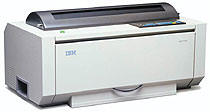
Set TOF
|
Serial & Model Information |
Reset a 4227 to factory defaults |
Lexmark Support |
Troubleshooting
Quick Tips
- Change the
report to only print pages 1-3 (Click
here for detailed instructions)
- Don't unload
the paper while your are aligning it unless you have a paper jam
- Micro up
moves the print down
- Micro down
moves the print up
- Check these three items first:
- Lever on right hand side must be down,
- continuous form paper loaded and
- LCD reads READY
- Put any spool files on hold (Esc 1 or Sys Attn 1)
- Put the printer online
- Press QUIT
button
- Micro Up/Down
to the silver platen bar
- Micro Up 8x
[the number of times may vary]
- Please note that
micro down moves the print up
&
micro up moves the print down
- Press STORE
- Press Start/Stop (the READY LCD will display)
After Completing Alignment
- Answer any printer messages
- Now you are ready to rock on your statements
[back to top]
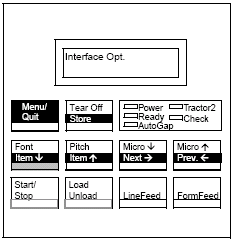
Serial Number and Model Type Information
- To find your serial number and/or model type look about two inches below
the control panel. You may have to tilt the Printer back to see it.
- The serial number will read S/N 11-????
- The model number will read one of the following: 4227, 4227-100 or
4227-200
[back to top]
How to Reset the Lexmark 4227 Printer to factory defaults
- Verify that the paper is loaded and the ready light is solid green
- Power off the printer.
- Remove the printer ribbon access cover.
- Push the printhead to the left manually until it reaches the carriage
rest.
- While holding down the Tear Off and Tractor
buttons, power the printer back on.
- The printer is now reset to factory default
[back to top]
Technical Support (800) 539-6275
Email Lexmark Support
Lexmark Support
Homepage
Lexmark
Online Support
[back to top]
Photos
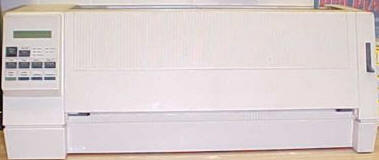
Front View 4227
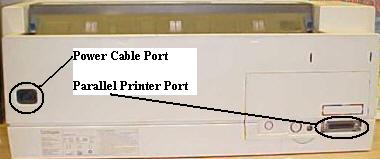
Rear View 4227
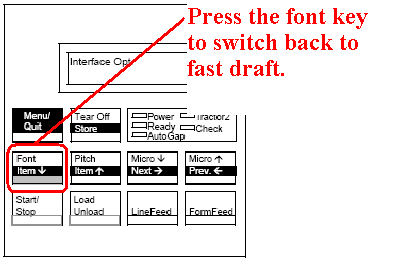
Q. My printer is printing slow
A. After checking the font display it was shown to be
on 'gothic'. We switched the printer back to fast draft and it began
printing normally.
[back to top]
|