TWSIP01
The workstation IOP detected an error.
Please read the danger notices in
Twinaxial workstation I/O processor isolation procedure
before performing this procedure.
One of the following occurred:
- All of the workstations on one port
are not working.
- All of the workstations on the system
are not working.
- One of the workstations on the system
is not working.
- The reference code table instructed
you to perform this procedure.
- The Remote Operations Console is not
working.
- If the system has
logical partitions, perform this procedure from the logical
partition that reported the problem. To determine if the
system has logical partitions, go to
Determining if the system has logical partitions before
continuing with this procedure.
- Are you using a
workstation adapter console?
Note:
A personal computer (used as a console) that is attached
to the system by using a console cable feature is known
as a workstation adapter console. The cable (part number
46G0450, 46G0479, or 44H7504) connects the system port
on the personal computer to a communications I/O adapter
on the system.
- No:
Continue with the next step.
- Yes:
Go to
WSAIP01. This ends the
procedure.
- Is the device you are
attempting to repair a personal computer (PC)?
- No:
Continue with the next step.
- Yes:
PC emulation programs operate and report system-to-PC
communications problems differently. See the PC
emulation information for details on error
identification. Then, continue with the next step.
-
Perform the following steps:
- Verify that all
the devices you are attempting to repair, the primary
console, and any alternative consoles are powered on.
- Verify that the
all the devices you are attempting to repair, the
primary console, and any alternative consoles have an
available status. For more information on displaying the
device status, see
Hardware Service Manager.
- Verify that the
workstation addresses of all workstations on the failing
port are correct. Each workstation on the port must have
a separate address, from 0 through 6. See the
workstation service information for details on how to
check addresses.
- Verify that the
last workstation on the failing port is terminated. All
other workstations on that port must not be terminated.
- Ensure that the
cables that are attached to the device or devices are
tight and are not visibly damaged.
- If there were
any cable changes, check them carefully.
- If all of the
workstations on the system are not working, disconnect
them by terminating at the console.
- Verify the
device operation (see the device information for
instructions).
- The cursor
position can assist in problem analysis.
- If the cursor is in the upper
right corner, it indicates a communication problem
between the workstation IOP and the device. Continue
with the next step.
- If the cursor is in the upper
left corner, it indicates a communication problem
between the workstation IOP and the operating
system. Perform the following steps:
- Verify that all current PTFs
are loaded.
- Ask your next level of
support for assistance.
This ends
the procedure.
- Is the system powered
off?
- Yes:
Continue with the next step.
- No:
Go to step
8.
-
Perform the following:
- Power on the system in
Manual mode. See
IPL type, mode, and speed options for details.
- Wait for a display to appear on the
console or a reference code to appear on the control
panel.
Does a display appear on the console?
- No:
Continue with the next step.
- Yes:
If you disconnected any devices after the console in
step
4, perform the following:
- Power off the system.
- Reconnect one device.
Note:
Ensure that you terminate the device you
just reconnected and remove the termination
from the device previously terminated.
- Power on the system.
- If a reference code appears
on the control panel, go to step
9.
- If no reference code appears,
repeat steps a through d of this step until you
have checked all devices disconnected
previously.
- Continue to perform the
initial program load (IPL).
This ends
the procedure.
- Does the same
reference code that sent you to this procedure appear on the
control panel?
-
Perform the following to make DST
available:
- Ensure that
Manual mode on the control panel is selected.
- Select function 21
Make DST Available.
- Check the console and any alternative
consoles for a display.
Does a display appear on any of the
console displays?
- No:
Continue with the next step.
- Yes:
If you disconnected any devices after the console in
step
4, perform the following:
- Power off the system.
- Reconnect one device.
Note:
Ensure that you terminate the device you
just reconnected and remove the termination
from the previously terminated device.
- Power on the system.
- If a reference code appears
on the control panel or on the HMC, go to step
9.
- If no reference code, repeat
steps a through d of this step until you have
checked all devices disconnected previously.
- Continue to perform the
initial program load (IPL).
This ends
the procedure.
-
Ensure that the following conditions are
met:
Did you find a problem with any of the
above conditions?
- Yes:
Continue with the next step.
- No:
Go to step
11.
-
Perform the following:
- Correct the problem.
- Select function 21
Make DST Available.
- Check the console and any alternative
consoles for a display.
Does a display appear on any of the
consoles?
- Yes:
Continue to perform the IPL.
This ends the
procedure.
- No:
Does the same reference code appear on the control
panel?
-
Is the reference code one of the
following: 0001, 0003, 0004, 0005, 0006, 0101, 0103, 0104,
0105, 0106, 5004, 5082, B000, D010, or D023?
- No:
Continue with the next step.
- Yes:
Go to step
15.
-
Does the system have an alternative
console on a second workstation IOP?
- Yes:
Continue with the next step.
- No:
Go to step
14.
-
There is either a Licensed
Internal Code problem, or there are two device failures on
the workstation IOPs, consoles, or cables. The console and
any alternative consoles are the most probable causes for
this failure.
- See the service information for the
failing display to attempt to correct the problem. If a
display is connected to the system by a link protocol
converter, use the link protocol converter information
to attempt to correct the problem. The link protocol
converter may be the failing item.
- If you have another working display,
you can exchange the console and alternative consoles
and perform an IPL to attempt to correct the problem.
- Exchange the following parts one at a
time until you determine the failing item:
- Console
- Alternative console
- Cables
- Workstation IOA for the console
- The multi-adapter bridge. See
symbolic FRU
MA_BRDG.
This ends the procedure.
-
The console, cables, or the
workstation IOP card is the most probable causes for this
failure. If the console is connected to the system by a link
protocol converter, the link protocol converter is possibly
the failing item. Use one or more of the following options
to correct the problem:
- See the service
information for the failing displays for more
information. If a display is connected to the system by
a link protocol converter, see the link protocol
converter information to attempt to correct the problem.
- If you have
another working display, you can exchange the console
and perform an IPL to attempt to correct the problem.
- Exchange the
following parts one at a time until you determine the
failing item:
- Console
- Workstation IOA
- The multi-adapter bridge. See
symbolic FRU
MA_BRDG.
- Twinaxial attachment (cable)
This
ends the procedure.
-
To continue problem analysis, use
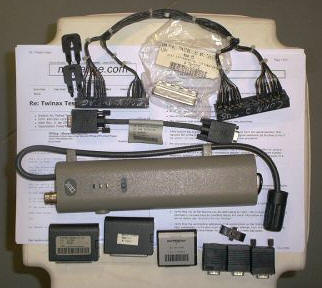
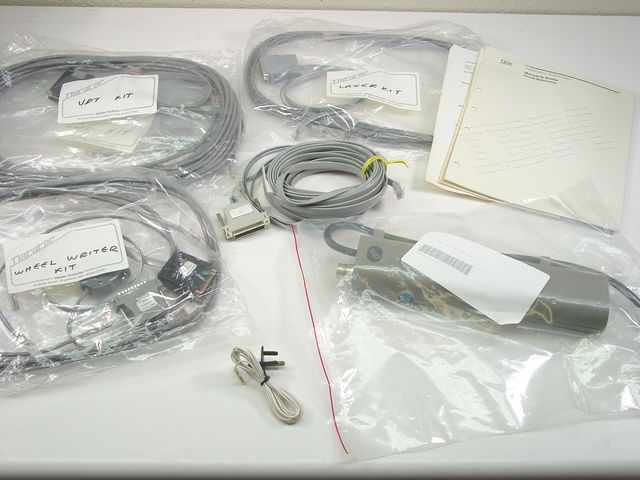
a port tester, part 93X2040 or 59X4262, which you may have
with your tools or the customer may have one. The port
tester has either two or three lights.
Is a port tester available?
- Yes:
Continue with the next step.
- No:
Check or exchange the cables from the system to the
failing display. Did this correct the problem?
- Yes:
You corrected the problem.
This ends
the procedure.
- No:
Go to step
12.
-
To use the port tester to isolate
the problem, perform the following:
- Verify that the port tester is
operating correctly by doing a self-test. A self-test
can be made at any time, even when the port tester is
attached to a port or cable. Perform the following steps
to do a self-test:
- Move the selector switch to the
center (0) position.
- Push and hold the test button
until all lights go on. The yellow lights should go
on immediately, and the green light should go on
approximately 5 seconds later. The port tester is
ready for use if all lights go on.
- Leave the system power on.
- Find the input cable
to the failing console or port.
Is the failing console or the failing port
attached to a protocol converter?
- No:
Perform the following:
- Disconnect the input cable from
the failing console.
- Connect the port tester to the
input cable.
- Continue with the next step.
- Yes:
Perform the following:
- Disconnect the cable that comes
from the system at the protocol converter.
- Connect the port tester to the
cable.
- Continue with the next step.
-
Perform the following:
- Set the
selector switch on the port tester to the left (1)
position for a twinaxial connection. Set the switch to
the right (2) position for a twisted pair connection.
- Press and hold
the test switch on the port tester for 15 seconds and
observe the lights.
- Choose from the
following options:
- If the port tester has
three lights, do the
following:
- If the port tester has
two lights, do the
following:
- If only the top (green) light
is on, go to step
27.
- If only the bottom (yellow)
light is on, go to step
21.
- If both lights are off, go to
step
22.
- If both lights are on,
continue with the next step.
-
The tester is in the self-test
mode. Check the position of the selector switch.
- If the selector switch is not in the
correct position, go to step
18.
- If the selector switch is already in
the correct position, the port tester is not working
correctly. Exchange the port tester, and go to step
16.
-
The cable you are testing has an
open shield.
Note:
The open shield can be checked only on the cable from
the twinaxial workstation attachment to the device or
from device to device. Only one section of cable can be
checked at a time. See the SA41-3136, Port Tester Use
information.
This ends the
procedure.
-
The cable network is bad. The
wires in the cable between the console and the twinaxial
workstation attachment are reversed. Go to step
26.
-
Perform the following:
- Find the twinaxial workstation
attachment to which the failing console is attached.
- Disconnect the cable from port 0 on
that twinaxial workstation attachment.
- Connect the port tester to port 0 on
the attachment.
- Set the selector switch on the port
tester to the left (1) position.
-
Perform the following:
- Press and hold
the test switch on the port tester for 15 seconds and
observe the lights.
- If the port
tester has three lights,
do the following:
- If the port
tester has two lights, do
the following:
- If only the top (green) light is on,
go to step
26.
- If only the bottom (yellow) light is
on, continue with step
24.
- If both lights are off, continue with
step
24.
- If both lights are on, go to step
25.
-
The test indicated that there was
no signal from the system. Reconnect the cable you
disconnected and perform the following:
- Exchange the
following parts:
- Twinaxial workstation IOA card
- The multi-adapter bridge. See
symbolic FRU
MA_BRDG.
- Power on the
system to perform an IPL.
This ends the
procedure.
-
The tester is in the self-test
mode. Check the position of the selector switch:
- If the selector switch is not in the
left (1) position, set the switch to the left (1)
position. Then go to step
23.
- If the selector switch is already in
the left (1) position, the port tester is not working
correctly. Exchange the port tester and go to step
22.
-
The cable to the workstation is
the failing item. Cable maintenance is a customer
responsibility. The cable must be repaired or exchanged. For
information on correcting cable problems, refer to the
Twinaxial cables information in the Planning topic. For
other cabling instructions, see the
Plan for cables topic. Then, power on the system to
perform an IPL.
This ends the procedure.
-
The port tester detects most
problems, but it does not always detect an intermittent
problem or some cable impedance problems. The tester may
indicate a good condition, although there is a problem with
the workstation IOP card or cables.
- If the failing
display is connected to a link protocol converter, the
link protocol converter is the failing item. See the
link protocol converter service information to correct
the problem.
- Exchange the
following parts:
- Console
- Twinaxial workstation IOA
- The multi-adapter bridge. See
symbolic FRU
MA_BRDG.
- Cables
- If you have
another working display, you can exchange the console
and perform an IPL to attempt to correct the problem.
See the service information for the failing display for
more information.
- If exchanging
the failing items did not correct the problem and the
reference code was a 5002, 5082, or 50FF, there may be a
Licensed Internal Code problem. Go to
LICIP03.
- The problem may
be caused by devices that are attached after the console
on port 0.
This ends the procedure.
|