|

 
| |
Booting Into Safe Mode
Windows XP
If Windows XP
is the only operating system installed on your computer, booting into Safe Mode
with these instructions.
- Restart the computer.
- As soon as the BIOS loads, begin tapping the F8 key on your keyboard. Do
so until the Windows Advanced Options menu appears. If you begin tapping the
F8 key too soon, some computers display a "keyboard error" message. If this
happens, restart the computer and try again.
- Ensure that the Safe mode option is selected. If it isn't selected use
the arrow keys to choose Safe Mode. Then press Enter to start booting into
Safe Mode.
- The computer then begins to start in Safe mode.
- When you are finished with all troubleshooting, close all programs and
restart the computer as you normally would.
To use the
System Configuration Utility method
- Close all open programs.
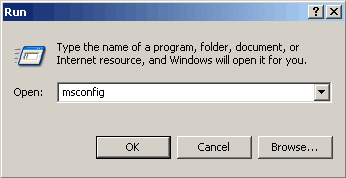
- Click Start, Run and type MSCONFIG in the box and click OK.
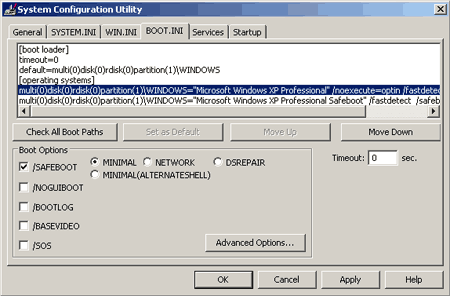
- The System Configuration Utility appears, On the BOOT.INI tab, Check the
"/SAFEBOOT" option, and then click OK
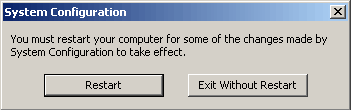
- Restart your computer when prompted.
- The computer restarts in Safe mode.
- Perform the troubleshooting steps for which you are using Safe Mode.
- When you are finished with troubleshooting in Safe mode, open MSCONFIG
again, on the BOOT.INI tab, uncheck "/SAFEBOOT" and
- click OK to restart your computer
Windows 2000
- Restart the computer.
- When you see the black & white "Starting Windows" bar at the bottom of
the screen press the F8 key. The Windows 2000 Advanced Options Menu should
then appear.
- Ensure that the Safe mode option is selected. If it isn't selected use
the arrow keys to choose Safe Mode. Then press Enter to start booting into
Safe Mode.
- When you are finished with all your troubleshooting steps, close all
open programs and restart the computer as you normally would.
Window 98 & Me
Standard Method
- Restart the computer.
- As your computer restarts but before Windows launches, press F8.
- On the Startup Menu, choose Safe Mode (Option 3)
System
Configuration Utility Method
- While in Normal mode, Close all programs.
- Click Start then Run and type MSCONFIG in the box. Then click OK
- In the System Configuration Utility on the General Tab, click the
Advanced Button
- In the Advanced Troubleshooting Settings dialog box, check Enable
Startup Menu. Click OK. Click OK again to return to your Windows desktop.
- You will then be prompted to restart the computer. Click Yes. The
computer will restart in Safe mode.
- When you are finished with troubleshooting in Safe mode, open MSCONFIG
again and uncheck "Enable Start-up Menu." under the Advanced Menu, then
click OK to restart your computer
Windows 95
- Restart the computer.
- As your computer restarts but before Windows launches, press F8.
- On the Startup Menu, choose Safe Mode (Option 3)
|