|

 
| |
Get started using Remote Desktop with Windows XP Professional
See Also
http://www.microsoft.com/windowsxp/using/mobility/getstarted/remoteintro.mspx
Updated: July 25, 2006
Imagine that you recently started a small business and are trying to build
your client base—salespeople out on the road every day, working on getting new
business. You don't want your salespeople to be left without documents they need
while meeting with important clients. You can empower your employees to have
important data at their fingertips, at all times.
Remote Desktop, included with Windows XP Professional, enables you to connect to
your computer across the Internet from virtually any computer, Pocket PC, or
Smartphone. Once connected, Remote Desktop gives you mouse and keyboard control
over your computer while showing you everything that's happening on the screen.
With Remote Desktop, you can leave your computer at the office without losing
access to your files, applications, and e-mail. Your sales force will be able to
access the latest pricing sheet from on the road by using Remote Desktop in
Windows XP Professional.
On This Page
To use Remote Desktop
With Remote Desktop, you can connect to your work computer from home and
access all of your programs, files, and network resources as though you were
actually sitting in front of your computer at work.
You need three things to create a remote location:
| 1. |
Microsoft Windows XP Professional must be installed on the computer
containing the files and programs that you want to access from a remote
computer. The computer must also be part of a corporate network in which
Remote Desktop connections are permitted. This computer is known as the
host. |
| 2. |
The remote computer must be running Windows 95 or later. This
computer must also have the Remote Desktop Connection client software
installed. The remote computer is known as the client. |
| 3. |
Both computers must be connected to the Internet through a VPN
connection. Note: If you're not connecting to the host computer
through a VPN, you'll need to use the actual IP address of the host
computer instead of the computer name. |
To set up the Remote Desktop, start with the host computer, which in this
example is your work computer.
| 1. |
Verify that you are signed in as the administrator. |
| 2. |
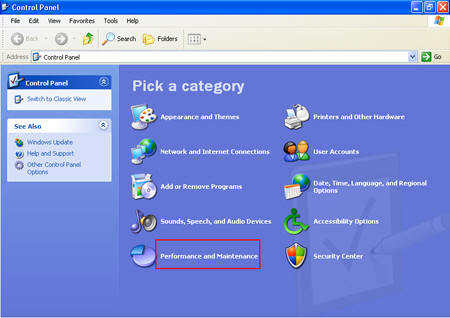
Click Start, click Control Panel, and then click
Performance and Maintenance.
 |
| 3. |
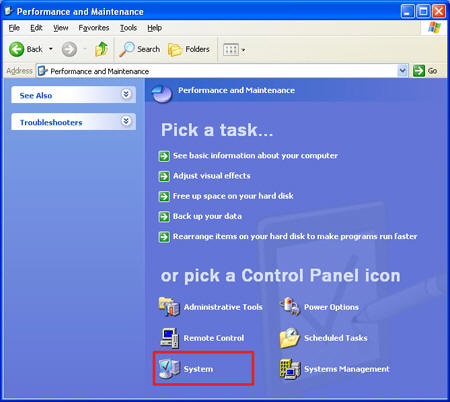
Click System.
 |
| 4. |
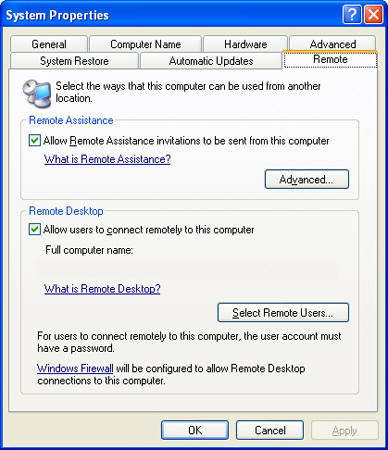
Click the Remote tab, select the Allow users to connect
remotely to this computer check box, and then click OK.
 |
Next, make sure you have Windows Firewall set up to allow exceptions.
| 1. |
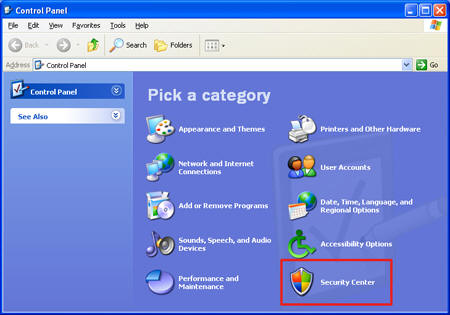
In the Control Panel, click Security Center.
 |
| 2. |
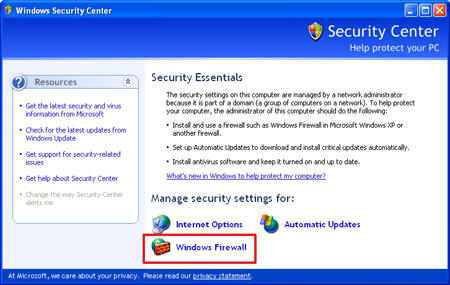
Under Manage security settings for, click Windows Firewall.
 |
| 3. |
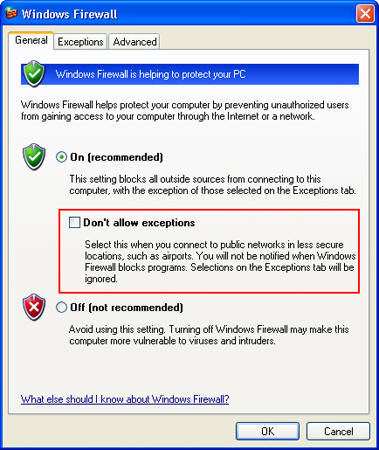
Make sure the Don't allow exceptions check box is not
selected.
 |
| 4. |
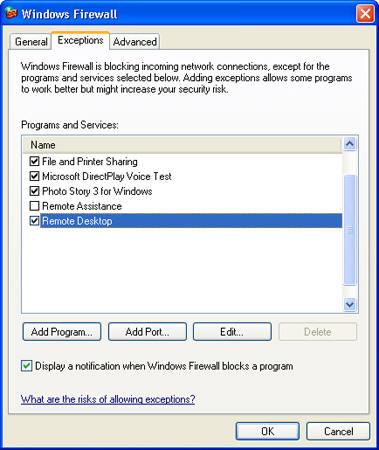
Click the Exceptions tab, and verify that the Remote
Desktop check box is selected.
 |
| 5. |
Click OK, and then close the Windows Security Center window.
Your host computer is now set up to allow remote access.
You will need the name of the host computer. |
| 6. |
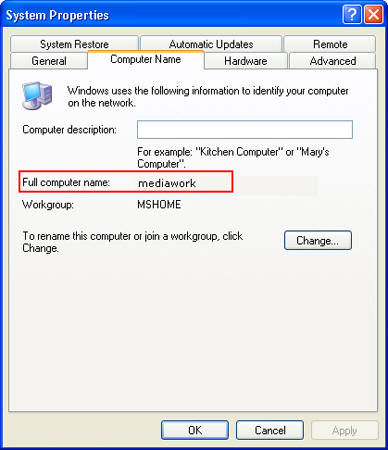
In Control Panel, click Performance and Maintenance, click
System, and then click the Computer Name tab.
 |
| 7. |
Write down the full computer name, and then click OK. |
| 8. |
Close Control Panel. |
| 9. |
Leave this computer running, locked, and connected to the corporate
network with Internet access. |
Connect your remote computer to the host computer
To connect your home computer, which is the client (or remote) computer to
your work (or host) computer, follow these steps:
| 1. |
On your home computer, click Start, point to All Programs,
and then point to Accessories. |
| 2. |
In the Accessories menu, point to Communications, and
then click Remote Desktop Connection. |
| 3. |
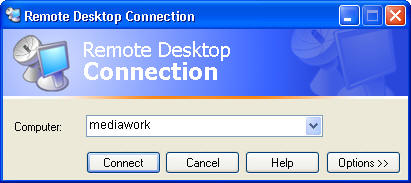
In the Computer box, type the computer name of your host
computer, which you wrote down earlier.
 |
| 4. |
Click Connect. |
| 5. |
When the Log On to Windows dialog box appears, type your user
name, password, and domain (if required), and then click OK.
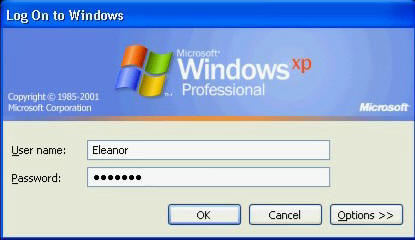
The Remote Desktop window opens, and you see the desktop settings,
files, and programs that are on your host computer, which in this
example is your work computer. Your host computer remains locked, and
nobody can access it without a password. In addition, no one will be
able to see the work you are doing remotely. |
To end your Remote Desktop session:
| 1. |
Click Start, and then click Log Off at the bottom of
the Start menu. |
| 2. |
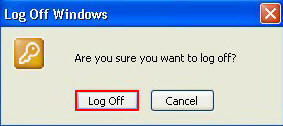
When prompted, click Log Off.
 |
|