|

 
| |

|
| Installation and Usage
Guide - iSeries Access for Linux |
 |
|
Table of Contents
|
| Introduction |
|
|
| iSeries Access for Linux 32-bit provides an ODBC
driver for accessing the DB2 Universal Database® (UDB) for iSeries
and a 5250 emulator. The 5250 emulator includes keyboard mapping,
macro support, workstation ID support, and many other functions.
iSeries Access for Linux 64-bit currently only provides an
Extended Dynamic Remote SQL (EDRS) driver. It is supported only on
SuSE SLES 9 and requires the iSeries Access for Linux 32-bit product
to be installed first. For more information on ERDS, refer to the
XDA Web Site and
iSeries Infocenter, "Extended Dynamic Remote SQL (EDRS) APIs" in
the Programming -> APIs -> Database and File -> Database section.
Both iSeries Access for Linux 32-bit and iSeries Access for Linux
64-bit EDRS Driver are available as web downloads.
iSeries Access for Linux 32-bit is also available as part of the
iSeries Access for Web product.
 Back
to top Back
to top
|
| Requirements |
|
|
| Licenses IBM eServer iSeries Access for
Linux (5722-XL1) is a licensed program. The 5250 Display Emulation
component requires an IBM iSeries Access Family (5722-XW1) license
before you can use it.
For more information about iSeries Access Family license
requirements, refer to the IBM International Program License
Agreement included with the iSeries Access Family (5722-XW1).
iSeries Server requirements for running iSeries Access for
Linux
- Connections to iSeries servers running OS/400 Version 5
Release 1 or OS/400 Version 5 Release 2 are supported. The product
may work with earlier releases of OS/400, but is supported only
with V5R1 and V5R2.
- The QUSER user profile must be enabled. From an iSeries
command line type DSPUSRPRF USRPRF(QUSER) and press
ENTER to display the status for QUSER. Use the
CHGUSRPRF command to change the profile if necessary.
- The host servers must be started. Type STRHOSTSVR and
press ENTER to start the OS/400 host servers.
- TCP/IP must be running. To run TCP/IP, you must have the
TCP/IP Connectivity Utilities for AS/400 (licensed program
5722-TC1) installed on the server. For more information on host
server options and TCP/IP, see the TCP/IP topic in the
iSeries
Information Center.
Linux requirements for running iSeries Access for Linux
- GLibc 2.2
- RPM 3.0
- OpenMotif 2.0 or later for the 5250 emulator
- unixODBC driver manager version 2.0.11 or later must be
installed on the client. Go to the
unixODBC Project web site
for more information on the driver manager and to download the
latest level of the driver manager.
Recommended iSeries LPAR (Power PC) Linux Distributions:
- Suse Linux Enterprise Server 8
- Red Hat Enterprise Linux 3
Note: if you recompile the unixODBC driver manager, the
./configure --prefix default is /usr/local. If you use this default,
you may need to update your shared library (/etc/ld.so.conf) and
executable paths to include it.
Back
to top
|
| Installation |
|
|
Installing iSeries Access for Linux
-
Download the iSeries Acccess for Linux RPM package:
iSeriesAccess-5.2.0-xx.xx.i386.rpm
where "xx.xx" indicates the version level that is available for
download.
- Enter the following command on the Linux client:
rpm -ivh iSeriesAccess-5.2.0-xx.xx.i386.rpm
Enter the actual name of the file that is downloaded in step 1.
For example:
iSeriesAccess-5.2.0-1.1.i386.rpm.
To acquire the 64-bit EDRS driver, refer to
Download, and select the file entitled "iSeries Access for
Linux 64-bit EDRS Driver".
Notes:
- The files are installed to directory
/opt/ibm/iSeriesAccess on your Linux client.
- The iSeries Access for Linux will automatically uninstall
any previous version of obsolete iSeries ODBC Driver for Linux
product.
- If the installation fails because of a dependency on
libodbcinst.so, make sure you have the unixODBC driver
manager installed. If the problem persists, run the installation
command with the --nodeps parameter to stop dependency checking.
- iSeries Access for Linux was packaged using RPM version
3.0.6.
- For more logging information, add the -vv parameter
to the end of the rpm commands.
Updating iSeries Access for Linux
To update iSeries Access for Linux after an initial
installation, enter the following command:
rpm -Uvh iSeriesAcccess-5.2.0-xx.xx.xxxx.rpm.
Uninstalling iSeries Access for Linux
To uninstall iSeries Access for Linux, enter the following
command:
rpm -e iSeriesAccess
Note: the /opt/ibm/iSeriesAccess/conv_tables directory
might not be removed during uninstall because of downloaded
conversion tables. The directory needs to be removed manually.
Manually adding iSeries Access for Linux to unixODBC Driver
Manager
The iSeries Access for Linux RPM package will automatically add
the ODBC driver to the list of ODBC drivers available through
unixODBC. The RPM package uses the unixODBC driver install program
"odbcinst", and the iSeries Access for Linux ODBC Driver
file "unixodbcregistration" to complete this task. You can
also use the unixODBC ODBCConfig program to configure additional
features of the ODBC Driver in iSeries Access for Linux.
Back
to top
|
| ODBC Configuration |
|
|
| ODBC Configuration GUI A data source can
be configured using the ODBC data source graphical user interface
(GUI). The GUI contains fields to set required and frequently used
options. The following instructions describe how to create or
configure an ODBC Driver data source.
- Open the Data Source Administrator that comes with the
unixODBC driver manager by typing ODBCConfig at the command
prompt.
- Decide what type of data source you wish to use. User data
sources (DSNs) are only accessible by the user who created them.
System DSNs are accessible by any user on that machine, but you
need to use root authority to create them.
- Click Add... to create a new data source or
Configure... to configure a data source that already exists.
If you clicked Configure... go to step 5, otherwise
continue to the next step.
- Select an ODBC driver. Click on iSeries Access ODBC Driver and
click the OK button.
Note: The Add, Remove, and Configure
buttons on this window apply to adding, removing, or configuring
a driver. If you accidentally click on one of these buttons,
close the window and repeat this step.
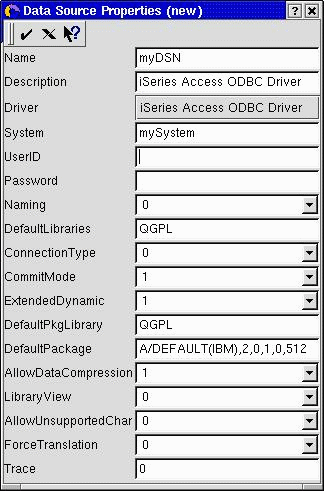
- A window similar to the following will appear. You may have
to resize the window to make it appear correctly.
- Fill in the data source name in the Name field and your
system name in the System field (required), and any other
fields you wish to set.
- Click the check mark in the upper-left corner of the window to
save the configuration.
You will have to manually configure any connection options you
want to set that do not have fields on the GUI. See
Connection String Keywords and Values and
manual configuration information
before manually configuring connection options.
Manual Data Source Configuration
Back
to top
|
| 5250 Configuration |
|
|
Starting a 5250 Emulator
The iSeries Access for Linux RPM will install a 5250 emulator.
This emulator consists of two main binaries:
- ibm5250 - This will invoke the 5250 emulator and
bring up a GUI for the system name, user and password. That
information will be used to obtain a 5722-XW1 license on the
system so a 5250 session may be brought up. Type ibm5250
--help to see command line options.
The following PDF file has more on the use of the ibm5250 -
iSeries_Access_5250.pdf
- setup5250 - This is the setup program that may be
used to configure values global (applied to all 5250 sessions)
to the user ID and to define multiple connections.
Once the initial 5250 program has been started, please
reference the on-line help text for additional configuration
options.
Back
to top
|
| Debugging Problems |
|
|
| Communications Use the
cwbping program to verify the connection between the Linux
workstations and the iSeries server, and to verify the host servers
are started.
Tracing and Logging
Once you verify your connection to the server, there are four
basic trace files for problem determination:
- SQL log - The unixODBC sql.log will show the input and
output parameters for ODBC API calls made. The sql.log is
activated using the unixODBC ODBCConfig program. From the
Advanced tab, you can enable sql tracing and configure the
location of the log file.
- History log - The history log will show high-level
communication, security and data conversion error messages. The
History log is activated using the cwbtrc
program.
- Detail trace - The detail trace will show low-level driver
information and is intended for use in reporting problems to
IBM. Detail trace is activated using the
cwbtrc program.
- ibm5250 - Adding the -debug flag to the ibm5250
command line will show detailed information for the emulator.
- ibm5250 – Adding the -trace flag to the ibm5250
command line will trace the telnet activity between the emulator
and host OS/400
For additional help on error messages, refer to the "Error
Message" sections in the ODBC FAQs and
5250 FAQs.
Technical Support
iSeries Access for Linux is IBM Licensed Program 5722-XL1.
Refer to one of these sources for known problems:
If you would like to call IBM Support:
Forum
As a user of iSeries Access for Linux, you are invited to
participate in the iSeries Access for Linux
forum, a discussion facility that puts you in touch with other
users of iSeries Access for Linux.
Back
to top
|
| FAQs |
|
|
|
Back
to top
|
| ODBC FAQs |
|
|
| Error messages
National Language considerations
Differences between the ODBC Driver in
iSeries Access for Linux and the ODBC Driver in iSeries Access for
Windows
Restrictions when using the ODBC Driver in
iSeries Access for Linux
Known problems
Error Messages
When an error occurs, the ODBC Driver in iSeries Access for Linux
returns the SQLSTATE (an ODBC error code) and an error message. The
driver obtains this information both from errors that are detected
by the driver and from errors that are returned by the iSeries
server.
For errors that occur in the data source, the ODBC Driver in
iSeries Access for Linux maps the returned native error to the
appropriate SQLSTATE. When both the driver and the driver manager
detect an error, they generate the appropriate SQLSTATE. The ODBC
Driver in iSeries Access for Linux returns an error message based on
the message returned by the iSeries server.
For errors that are detected within the ODBC Driver, the driver
returns an error message based on the text associated with the
SQLSTATE. These error messages are translated messages.
Help text for error messages found in the
underlying components of the iSeries Access product is also shipped
in the /opt/ibm/iSeriesAccess/doc directory.
Error message format
Error messages have the following format:
[vendor][ODBC-component][data-source]

error-message
The prefixes in brackets ([ ]) identify the source of the error. The
following table shows the values of these prefixes returned by
iSeries ODBC Driver for Linux.
When the error occurs in the data source, the [vendor] and
[ODBC-component] prefixes identify the vendor and name of the ODBC
component that received the error from the data source.
|
| Error Source |
Value |
| Driver Manager |
[unixODBC]
[Driver Manager] |
| ODBC Driver in iSeries Access for Linux |
[unixODBC]
[IBM]
[iSeries Access ODBC Driver] |
| NLS messages |
[unixODBC]
[IBM]
[iSeries Access ODBC Driver]
Column #:
NLS error message number
NLS error message text
See the message prefix table below to find second level help
text. |
| Communication and Security |
[unixODBC]
[IBM]
[iSeries Access ODBC Driver]
Communications link failure. comm rc=xxxx - (message text)
xxxx is the error number in decimal, not hexadecimal, format.
Message text describing the nature of your error appears with the
error number. See the message prefix table below to find second
level help text. |
| DB2 UDB for iSeries |
[unixODBC]
[IBM]
[iSeries Access ODBC Driver]
[DB2 UDB]
Server error message
To view error message text for DB2 UDB for iSeries errors:
| For errors that begin with: |
Use this OS/400 command |
| SQL |
DSPMSGD RANGE(SQLxxxx) MSGF(QSQLMSG) |
| IWS or PWS |
DSPMSGD RANGE(ZZZxxxx) MSGF(QIWS/QIWSMSG)
ZZZ is either IWS or PWS |
|
Some other prefixes that may be seen through the ODBC Driver
in iSeries Access for Linux include:
National Language considerations when using iSeries Access for Linux
The ODBC Driver in iSeries Access for Linux handles many types
of data conversions. The character code page conversions involve
using conversion tables and the iconv interfaces. Some of the
conversion tables are shipped with the driver, others will be
automatically downloaded from the iSeries when needed. Iconv is
a library shipped with Linux that also handles character data
conversions.
Coded Character Set Identifiers (CCSID)
The ODBC Driver in iSeries Access for Linux uses a pair (to
and from) of Coded Character Set Identifiers (CCSID) to
convert character data. The conversion will either use a
conversion table or the iconv interfaces.
Conversion Tables
Conversion tables are stored in
/opt/ibm/iSeriesAccess/conv_tables and use the following
naming convention:
<4 byte hex number of FROM CCSID><4 byte hex number of TO
CCSID>.tbl
For example, the conversation table for 819 to 500 would be
033301f4.tbl.
Many conversion tables are shipped with the iSeries Access
ODBC Driver. Additional conversion tables will be downloaded
automatically from the iSeries when they are needed. You can
also download conversion tables using the
CWBNLTBL utility.
ODBC Application Character Set
The ODBC application character set is defined by the current
locale's character set.
To find out the current locale, use the following command:
locale
To find out the current mapping between the current
locale's character set and the CCSID that will be used, use
the following command:
/opt/ibm/iSeriesAccess/bin/cwbnltbl
Overriding the Character Set to/from CCSID Mappings
If you wish to change or add character set to/from CCSID
mapping, add the following lines to the
$HOME/.iSeriesAccess/cwb_userprefs.ini configuration file.
[CWB_CURRUSER\Software\IBM\Client Access
Express\CurrentVersion\NLS]
CCSID-CODESET=attr_str:939,IBM939,819,IBM819
The above lines will create mappings for CCSID 939 to
character set "IBM939" and for CCSID 819 to character set
"IBM819".
List of Available Locales
To list the available locales, use the following command:
locale -a
List of Available Iconv Character Sets
To list the available iconv character sets, use the following
command:
iconv -l
How to Investigate Conversion Problems
Most conversion problems are logged in the History Log. To
turn on history logging, use the following command:
/opt/ibm/iSeriesAccess/bin/cwbtrc /hl:1
(Refer to CWBTRC for more about the
trace utility.)
The history log output will be in
$HOME/.iSeriesAccess/cwbhistory-<application name>-<process
ID>.csv. Use either a text editor or a spread sheet to
view the contents of the history log.
Differences between the ODBC Driver in iSeries Access for
Linux and the ODBC Driver in iSeries Access for Windows
| Linux ODBC |
Windows ODBC |
| The driver is an ODBC 3.5 ANSI driver with
the ability to store and process Unicode data. An ANSI
driver does not support Unicode strings passed as arguments
to the APIs. Applications passing Unicode strings on APIs
will work because the unixODBC driver manager maps calls
these calls to the ANSI driver's narrow interfaces. |
The driver is an ODBC 3.5 Unicode driver. A
Unicode driver accepts Unicode strings as arguments to the
APIs. |
| To sign on you must specify a user ID and
password when calling the connection API or have the user ID
and password entered into the DSN. The ODBC driver will not
prompt for iSeries user IDs or passwords. User ID and
password updates must be done through a telnet session with
the iSeries. |
The user has sign on options that control
which user ID and password to use when connecting. When
connecting, cached passwords might be used. If a user's
password has expired a dialog is displayed to allow a user
to change it. |
| When binding a parameter or a column with
SQL_C_WCHAR as the C type, wchar_t buffers should not
be passed in. The driver manager and driver both handle the
SQL_C_WCHAR data type as a 2 byte UCS-2 string. |
When binding a parameter or a column with
SQL_C_WCHAR as the C type, wchar_t buffers should be passed
in. The driver manager and driver both handle the
SQL_C_WCHAR data type as a 2 byte UCS-2 string. |
Restrictions when using the ODBC Driver in iSeries Access
for Linux |
| Restriction |
Reason |
| MTS is not supported. |
This depends on Microsoft Windows-specific
components which are not available on Linux. |
| APIs that display a graphical user interface
are not supported. |
The API call will still complete but will
behave as if displaying the GUI failed. |
| Translation DLLs |
Translation DLLs are not currently supported.
Any attempt to use them will be ignored. |
| DSN connection option for user ID /password
prompting via a sign-on dialog is not supported. |
Graphical user interfaces are not being ported
to Linux. |
| DSN option for customizing package settings for
an application is not supported. |
Only the simple implementation of package
settings is being ported to Linux. |
| See
Unsupported Connection String Keywords for other DSN options
that are not supported in Linux. |
These keywords correspond with options we
aren't supporting. |
| Secure Sockets Layer (SSL) component |
The SSL component is not needed on shipped with
the Linux driver. Use a common SSL tunnel or Socks server
instead. |
| Connection Timeout |
The connection timeout option is not supported
with the Linux driver. |
Known problems
There are several known problems that have been discovered with
the unixODBC Driver Manager and with applications that use the
ODBC Driver in iSeries Access for Linux. This list is by no
means a complete list, but contains a list of problems that
we've noticed
unixODBC Driver Manager:
Refer to the unixODBC web
site for a list of known problems that are fixed in each
release.
Applications:
| Application |
Problem |
Status |
| StarOffice 5 |
Creating a table fails. The syntax used by
StarOffice is incorrect. |
Reported to StarOffice |
| OpenOffice 641c |
SQL Queries fail because of incorrect syntax.
Both the Library and Table name are with-in double quotes,
"Library.Table" instead of "Library"."Table" |
OpenOffice issue #3289 |
| OpenOffice 641c |
Using the spreadsheet autopilot to import data
from an iSeries database will convert numeric field data in to
date format |
OpenOffice issue #3494 |
| iconv |
Some Korean, Traditional Chinese and Simplified
Chinese mixed-ebcdic character data conversions will fail on
SuSE and Turbo. (IBM933, IBM935, IBM937, IBM939) |
Update to latest iconv |
Back
to top
| 5250 FAQs |
|
|
| Error Messages Emulator will not
start, font error indicated.
The emulator uses scalable 75 and 100 DPI fonts. If scalable
fonts are not found an attempt to use a fixed font is made. Even
if a fixed font is found and used, for proper full screen and
size support, the X server should be configured to use scalable
fonts.
The error returned should look similar too:
"*****Check your /etc/X11/XF86Config file*****
-b&h-lucidatypewriter-medium-r-normal-sans-0-* scalable
fonts are not available.
*****Using fixed fonts******.
Or
Check your /etc/X11/XF86Config file.
-b&h-lucidatypewriter-medium-r-normal-sans-* fixed and
scalable fonts are not available. Session not starting.
For either of the above messages, 75 and 100 dpi fonts need
to be made available. The default font server is configured
usually in one of the following two ways:
1. The "XFree86Config" File
The global XFree86 config file "XF86Config" or "XF86Config-4"
is located in the /etc or /etc/X11 directories. The user may
also have ".XF86Config" or ".XF86Config-4" (user config version)
in his home directory.
If the following is in the XF86Config, the font server is
configured here and is not configured to use 75 and 100 dpi
scaled fonts.
FontPath "/usr/X11R6/lib/X11/fonts/75dpi:unscaled"
FontPath "/usr/X11R6/lib/X11/fonts/100dpi:unscaled"
To enable 75 and 100 dpi scalable fonts, change the above two
lines to look like this:
FontPath "/usr/X11R6/lib/X11/fonts/75dpi"
FontPath "/usr/X11R6/lib/X11/fonts/100dpi"
2. Font server (xfs) "config" file
If the XF86Config file contains a single line similar to the
following, then look for the file "config" in /etc/X11/fs
directory:
FontPath "unix/:7100"
Similar to the steps above find the lines and remove the
":unscaled" from the lines for 75 and 100 dpi fonts.
For example change:
catalogue = /usr/X11R6/lib/X11/fonts/korean,
/usr/X11R6/lib/X11/fonts/misc:unscaled,
/usr/X11R6/lib/X11/fonts/75dpi:unscaled,
/usr/X11R6/lib/X11/fonts/100dpi:unscaled,
to look like this:
catalogue = /usr/X11R6/lib/X11/fonts/korean,
/usr/X11R6/lib/X11/fonts/misc:unscaled,
/usr/X11R6/lib/X11/fonts/75dpi,
/usr/X11R6/lib/X11/fonts/100dpi,
Then restart the X server.
For more help or information read the man pages for X(7x),
xfs(1x) and XF86Config(5x) or the Linux Font, Font Server or
XFree86 HowTo's.
Troubleshooting font problems.
To troubleshoot font problems use the following XFree86
utilities:
xfd -fn "fontname" - To try and display the font
xlsfonts - To get a list of all available fonts from the
font server
xlsfonts -fn pattern - To get a list of pattern available
fonts from the font server
Multiple users on a single Linux client.
The iSeries Access for Linux 5250 emulator is a client
implementation. It is intended to be used on a Linux client,
defined as a system with a single Linux user, using one Linux
user ID. The emulator may be run on a Linux server (i.e. Linux
Terminal Server Project, Virutal Network Computing, etc.), but
each user will have to specify the --STAND_ALONE command line
option when launching ibm5250. This option will provide a
separate emulator session for each user.
Back
to top
|
| Utilities |
|
|
| The following utilities are included with
iSeries Access for Linux and are shipped in
/opt/ibm/iSeriesAccess/bin.
RTMCMD - Run an iSeries batch/CL
command
Use this command from a console prompt to run a single
iSeries command or a group of iSeries commands.
Syntax to run a single command
rmtcmd [command]
Syntax to run a group of commands
rmtcmd [/I:fileName]
Parameters
- /system:systemName = iSeries system name
- /user:userName = iSeries user profile
- /password:password = iSeries user profile password
- /Q = no error prompts
- /Z = no banners
Examples
- To run command foo on iSeries system bigblue, run:
rmtcmd foo /system:bigblue /user:UserProfile
/password:UserPassword
- To run a groups of command listed in a file, run:
rmtcmd /i:foocmds.txt /system:bigblue /user:UserProfile
/password:UserPassword
RTMODBC - Run an iSeries batch/CL
command using the ODBC driver
Use this command from a console prompt to run a single
iSeries command or a group of iSeries commands.
Syntax to run a single command
rmtodbc [command]
Syntax to run a group of commands
rmtodbc [/I:fileName]
Parameters
- /system:systemName = iSeries system name
- /dsn:dsnName = unixODBC DataSource name
- /user:userName = iSeries user profile
- /password:password = iSeries user profile password
- /Q = no error prompts
- /Z = no banners
Examples
- To run command foo on iSeries system bigblue, run:
rmtodbc foo /system:bigblue /user:UserProfile
/password:UserPassword
- To run a groups of command listed in a file, run:
rmtodbc /i:foocmds.txt /system:bigblue /user:UserProfile
/password:UserPassword
CWBPING - Test the connection to
the server
CWBTRC - Trace iSeries Access for
Linux
Use this command from a console prompt to configure
tracing.
Syntax
cwbtrc [/DT:0-1] [/DPATH:path] [/DWRAP:0-4000] [/DFLTR:0-1]
[/DTICK:0-1] [/DFRMT:0-1] [/HL:0-1] [/HPATH:path]
[/HWRAP:0-4000] [/HFLTR:0-1] [/HTICK:0-1]
Parameters
Note: Defaults shown in bold.
- /DT:0-1 = turn detail trace off/on
- /DPATH:path = detail trace path, default is
$HOME/.iSeriesODBC
- /DWRAP:0-4000 = detail trace wrap size (MB), default is
1. An "<EOF>" symbol will be placed after the last record.
- /DFLTR:0-1 = detail trace filter off/on
- /DTICK:0-1 = timestamp or tick count in trace
entries
- /DFRMT:0-1 = limit tcp hex data off/on
- /HL:0-1 = turn history log off/on
- /HPATH:path = history log path, default is
$HOME/.iSeriesODBC
- /HWRAP:0-4000 = history log wrap size (MB), default is
1. An "<EOF>" symbol will be placed after the last record.
- /HFLTR:0-1 = history log filter off/on
- /HTICK:0-1 = timestamp or tick count in traces
entries
Running CWBTRC without any parameters will show the command
syntax and the current status of each parameter.
The output from CWBTRC will have the following naming
convention:
cwbdetail-<process name>-pid.csv
cwbhistory-<process name>-pid.csv
The output files will be in semi-colon separated record
format, suitable for input into spreadsheets for viewing.
Examples
The following command will turn on detail trace and allow
it to grow to a 10 meg file before wrapping. It will also turn
on history logging.
cwbtrc /dt:1 /dwrap:10 /hl:1
The following command will turn on history log and change
the path to /usr/traces
cwbtrc /hl:1 /hpath:/usr/traces
CWBNLTBL - Download conversion
tables
Use this command from a console prompt to download
conversion tables.
Syntax
cwbnltbl [source-code-page] [target-code-page] [system]
[userid] [password]
Parameters
- source-code-page = source code page for the table
- target-code-page = target code page for the table
- system = iSeries system to download the table from. Note
that if a connection to the iSeries is necessary, the user
ID and password must also be specified.
- userid = iSeries user ID
- password = iSeries password
The tables share a common location on the workstation
/opt/ibm/iSeriesODBC/conv_tables. Many conversions tables are
already shipped with the product. The product also uses iconv
conversion where necessary. Use the History Log to look for
conversion information.
Examples
- To download the 819 to 13488 conversion table from the
iSeries if necessary, run
cwbnltbl 819 13488 myiSeriesSystem myiSeriesuserid
myiSeriesPwd
- To show the current locale charset and its code-page
mapping, run
cwbnltbl
CWBCOPWR - Change advanced
communications settings
Use this command to change the advanced communications
settings of iSeries Access for Linux.
See
cwbcopwr.html for details
Back
to top
|
| Examples |
|
|
Examples
PHP - ODBC
See how the Apache Software Foundation's web server, PHP, and
the ODBC Driver in iSeries Access for Linux can work together
to access database data on an iSeries server.
Instructions for setting up PHP and Apache are in the
Redpiece
Linux Integration with OS/400 on the IBM eServer iSeries
Server, (SG24-6551).
Read section 2.6 Three-tier application setup using PHP and
Apache. Additional instructions are in index.html or index.php
in the download file.
Requirements: a Linux machine running PHP under the Apache
web server, the unixODBC driver manager, and the ODBC Driver
in iSeries Access for Linux. PHP must have unixODBC driver
manager support compiled in.
To download the files, read and accept this agreement:
| This material contains IBM copyrighted sample
programming source code, DB2(R) UDB PHP Demo. IBM grants
you a nonexclusive copyright license to use the Sample
Code as an example from which you can generate similar
function tailored to your own specific needs. Your license
to this Sample Code provides you no right or licenses to
any IBM patents.
The Sample Code is provided by IBM for illustrative
purposes only. The Sample Code has not been thoroughly
tested under all conditions. IBM, therefore, does not
guarantee or imply its reliability, serviceability, or
function. IBM provides no program services for the Sample
Code.
All Sample Code contained herein is provided to you "AS
IS" without any warranties of any kind. THE IMPLIED
WARRANTIES OF MERCHANTABILITY, FITNESS FOR A PARTICULAR
PURPOSE AND NON-INFRINGMENT ARE EXPRESSLY DISCLAIMED. SOME
JURISDICTIONS DO NOT ALLOW THE EXCLUSION OF IMPLIED
WARRANTIES, SO THE ABOVE EXCLUSIONS MAY NOT APPLY TO YOU.
IN NO EVENT WILL IBM BE LIABLE TO ANY PARTY FOR ANY
DIRECT, INDIRECT, SPECIAL OR OTHER CONSEQUENTIAL DAMAGES
FOR ANY USE OF THE SAMPLE CODE INCLUDING, WITHOUT
LIMITATION, ANY LOST PROFITS, BUSINESS INTERRUPTION, LOSS
OF PROGRAMS OR OTHER DATA ON YOUR INFORMATION HANDLING
SYSTEM OR OTHERWISE, EVEN IF WE ARE EXPRESSLY ADVISED OF
THE POSSIBILITY OF SUCH DAMAGES.
I accept. Download.
Once the package is downloaded to your Linux machine,
unzip it. |
Back
to top
|
| Reference Links |
|
|
-
"iSeries Access for Linux: The Native Linux Solution"
This presentation from the COMMON conference (Spring 2004)
gives an overview of the iSeries Access for Linux product.
-
Linux for IBM eServer iSeries home page
This link provides a lot of information regarding running
Linux on iSeries.
-
iSeries ODBC Driver for Linux home page
This link provides general information on the iSeries ODBC
Driver for Linux product, which provides versions for both
Power PCs and Intel-based Linux workstations . The ODBC Driver
in iSeries Access for Linux is a follow-on to the iSeries ODBC
Driver for Linux, but currently iSeries Access for Linux is
only available for Intel-based Linux workstations.
- unixODBC Driver Manager
This link provides information on the unixODBC Driver
Manager. Among other things, there are links here to see what
is fixed in a particular release and a spot to download the
latest version of the unixODBC Driver Manager.
-
iSeries Information Center Programming articles for V5R2
iSeries Access ODBC Driver for Windows
This link gets you to information about implementation issues,
restrictions, performance information, and programming
examples. Almost all this information also applies to the
iSeries Access ODBC Driver for Linux.
-
DB2 SQL Reference
This link provides information on SQL (Structured Query
Language) and the syntax for using it.
-
Microsoft ODBC web page
This link gets you to information about the ODBC specification
and examples on how to use it.
- IBM Redbooks
This link gets you to information on IBM redbooks.
- IBM
iSeries Support
This link gets you to IBM iSeries Support information and
helps you find other information to help you if you encounter
any problems.
|
|
|
|
|