IBM Server Site

IBS Home Up

How Do I Change Sku Descriptions in Sales Update (Order Entry)?

Problem

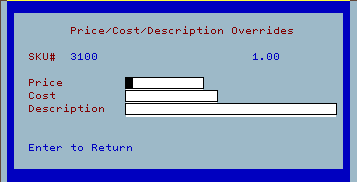
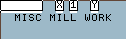
  • Whenever I am in Sales Entry (SU 1) and type quantity + sku then field exit to OV (Override Field) and type a 'M' for manual override the box pops up asking for all the sku information.
  • I type in the new description, price and cost information then press ENTER.
  • It looks like it takes everything but when it prints it comes out with the original sku description not what I typed in the description field.

Cause

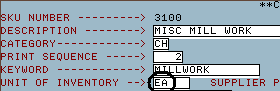
  • The sku setup for this product is not correct. This sku must be setup for UM (Unit of Measure) as '$$' in IU 4 (Master Inventory File).

Resolution 1 - Changing inventory item

  • go to IU 4 (Master Inventory File)
  • select the sku you want to change
  • change the Unit of Inventory field to '$$'
  • press ENTER to confirm and complete update
  • now you can change the inventory description as needed

Resolution 2 - not changing inventory item

  • If changing the inventory item is not chosen you can also enter line item sku descriptions in the following lines as 'comment lines'
  • Go to SU 1 (Sales Update/Order Entry)
  • Start a sale
  • Enter your sku product information
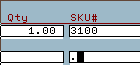
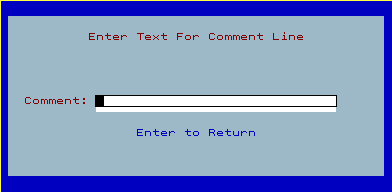
  • On the following line(s) key a '.' (Period) into the sku field then press ENTER.
  • Now enter the description referencing your sku product(s).

[back to top]

IBS Lumber and Building Material Software Copyright © 2006 IBS Lumber Software Inc (TM)
Last modified: November 7, 2011

IBS Sales & Support 888-640-1252
Main Office 888-640-1252
Fax IBS 877-712-8937

All pages contained in this support website are not intended for general public distribution. Any material here can be considered private, confidential with various copyrights and restrictions against public release. You 'the browser' cannot legally release this information for general public distribution.

remote support: http://www.gotomeeting.com | remote support download program